Overview
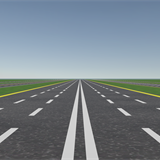
Road Shader is a lit URP shader that draws road markings from the mesh's first UV channel: side lines, one or more centre lines, lane lines on each side, dashes and a pedestrian crossing. The markings are anti-aliased, need no marking textures, and work on any mesh with a sensible UV layout.
The package also contains RoadTrack, an editor tool that builds a road mesh along a spline, drapes it
over the ground and places props around it, then saves the result as a plain prefab.
Open the web demo to drive the sample circuit and change the markings live.
Markings from sliders
Side, centre and lane lines, dashes and a crossing. No textures to paint.
Any mesh
U across the road, V along it. Unity's Plane already works.
Crisp
One-pixel soft edges up close; dashes blend instead of shimmering in the distance.
URP Lit
Shadows, lightmaps, SSAO, decals and fog, on Forward, Forward+ and Deferred.
Race tracks
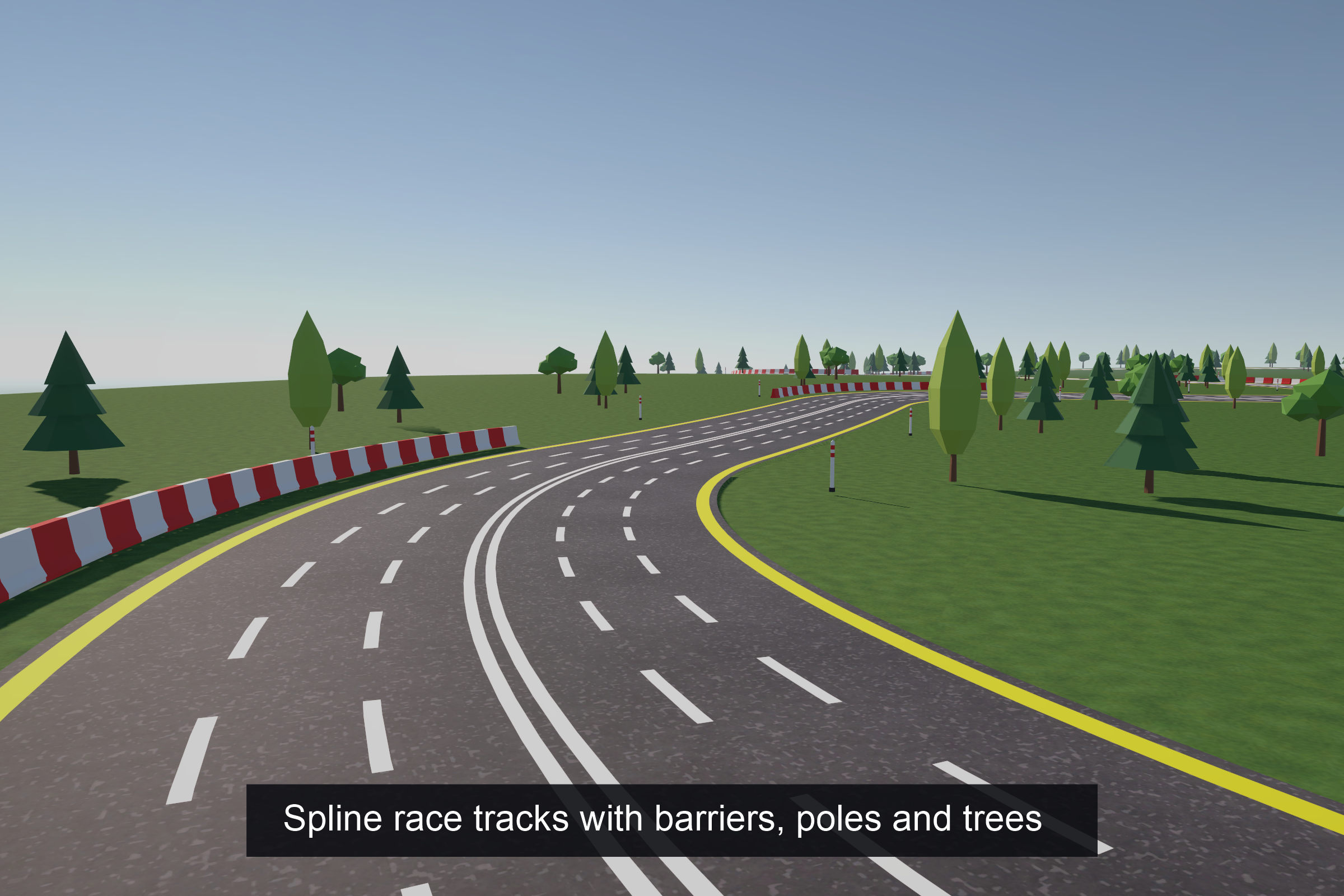
Straights and circular turns on a spline, snapped to terrain, with props.
No runtime cost
Save the track as meshes or a prefab. No script or spline at runtime.
Requirements
| Item | Version | Notes |
|---|---|---|
| Unity | 6.1+ | Tested on Unity 6000.6 |
| Universal Render Pipeline | 17.1+ | Tested on URP 17.6. Forward, Forward+ and Deferred |
com.unity.splines | 2.9+ | Optional Only for the track generator |
com.unity.test-framework | Optional For the included tests |
Quick start
- Open the demo Open
HardArtcore/RoadShader/Scenes/DemoSceneand look around the sample circuit. - Use a road Drag a prefab from
Prefabs/into your scene, or assignMaterials/Road.matto your own road mesh. - Make it yours Duplicate a material and change the markings in the Inspector. Every change shows immediately in the Scene view.
One material per road type is enough: every road that shares a material shares its markings, and the SRP Batcher draws them together.
UV layout
The shader reads the mesh's first UV channel:
- U (x)
- Goes across the road, from 0 on one edge to 1 on the other. Line widths and offsets are fractions of the road width.
- V (y)
- Runs along the road. Dash length and the crossing position are measured in V units.
To keep dashes the same length on every piece, keep V proportional to the real length of the piece, for example V from 0 to 1 per 10 m. Unity's Plane mesh already uses 0 to 1 in both directions, so a 10 m Plane is a ready road piece.
Tiling and Offset on the base map only move the asphalt textures. The markings always follow the mesh UVs, so you can tile the asphalt as much as you like.
Material properties
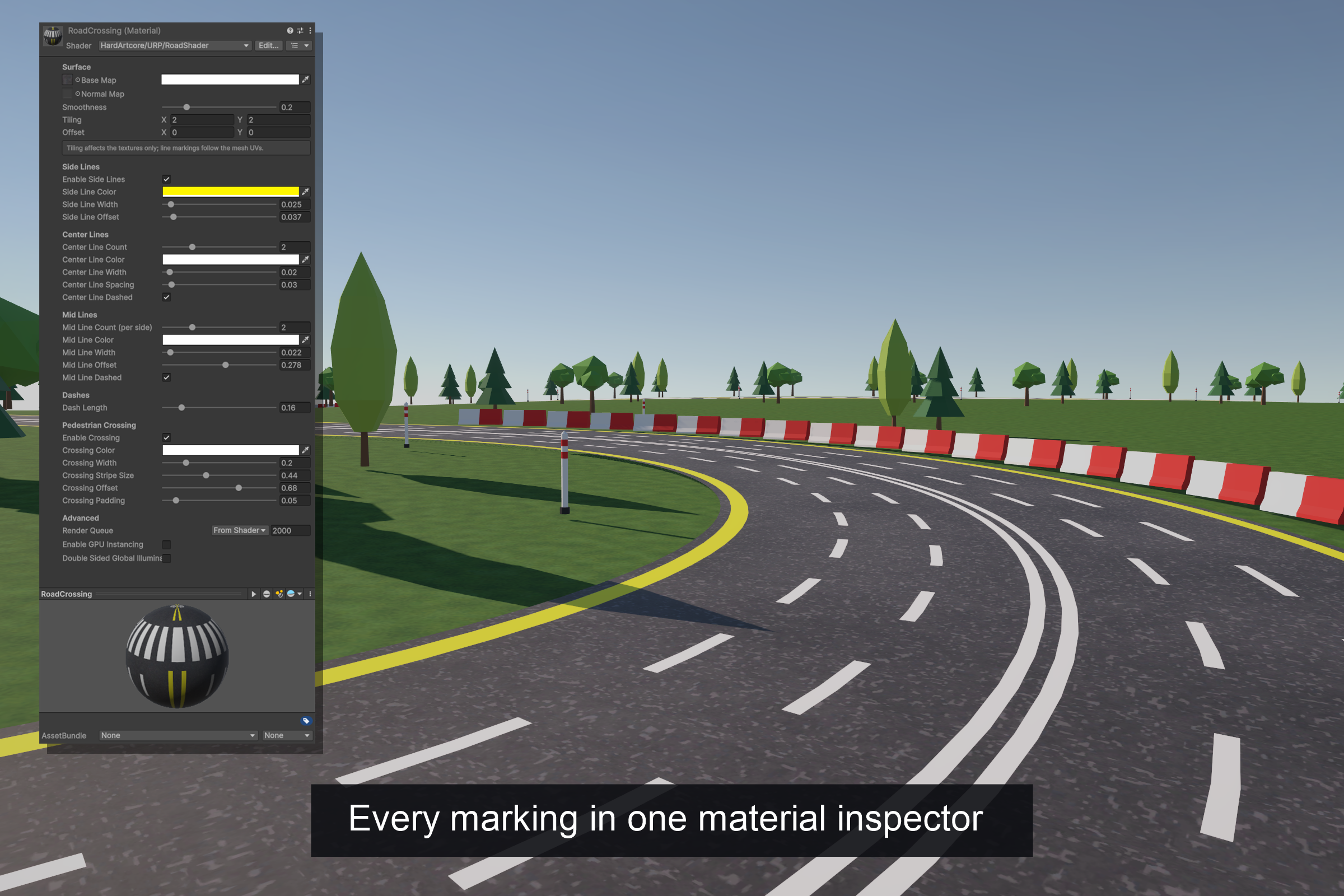
| Section | Property | Description |
|---|---|---|
| Surface | Base Map / Base Color | Asphalt albedo texture and tint. |
| Normal Map / Normal Scale | Optional asphalt normal map. | |
| Smoothness | Surface smoothness, for asphalt and paint. | |
| Side Lines | Enable Side Lines | Toggles the two edge lines. Off also removes their cost from the shader. |
| Color / Width / Offset | Line colour (alpha is paint opacity), width, and distance from the road edge. | |
| Center Lines | Center Line Count | 0 to 8 lines centred on the road. 2 gives a double centre line. |
| Color / Width | Line colour and width. | |
| Center Line Spacing | Distance between centre lines when the count is above 1. | |
| Center Line Dashed | Solid or dashed. | |
| Mid Lines | Mid Line Count (per side) | 0 to 8 lane dividers on each side of the centre. |
| Color / Width / Dashed | Line appearance. | |
| Mid Line Offset | Distance from the centre to the outermost mid line; the lines are spread evenly within it. | |
| Dashes | Dash Length | Length of one dash in V units. Gaps are the same length. |
| Pedestrian Crossing | Enable Crossing | Toggles the zebra crossing. Off also removes its cost from the shader. |
| Color | Stripe colour. | |
| Crossing Width | Size of the crossing along the road, in V units. | |
| Crossing Stripe Size | Width of each stripe. | |
| Crossing Offset | Position along the road, in V. | |
| Crossing Padding | Gap between the crossing and the interrupted lane lines. |
The crossing is drawn once, at V = Crossing Offset. On a 0 to 1 road piece that is a position along
the piece; on a long track mesh it is near the start, which makes a good start line.
Common layouts
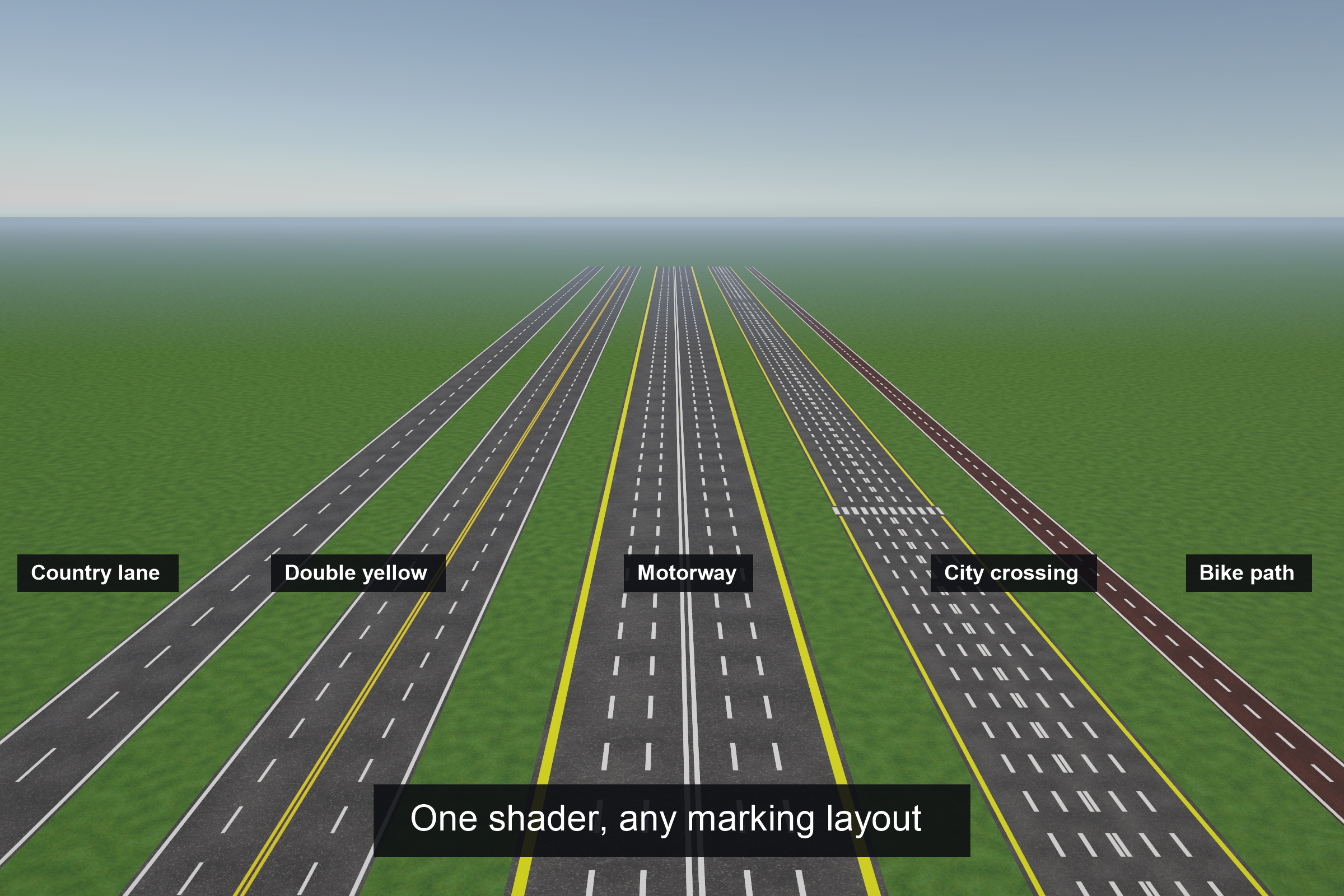
| Layout | Settings |
|---|---|
| Country lane | Side lines on, 1 dashed centre line, 0 mid lines. |
| Double yellow | 2 solid yellow centre lines, 1 dashed mid line per side. |
| Motorway | Yellow side lines, 2 solid centre lines, 2 dashed mid lines per side (this is Road.mat). |
| City crossing | RoadCrossing.mat: dashed double centre line and a crossing. |
| Bike path | A narrow mesh, a red Base Color tint, white side lines and a short-dashed centre line. |
Anti-aliasing
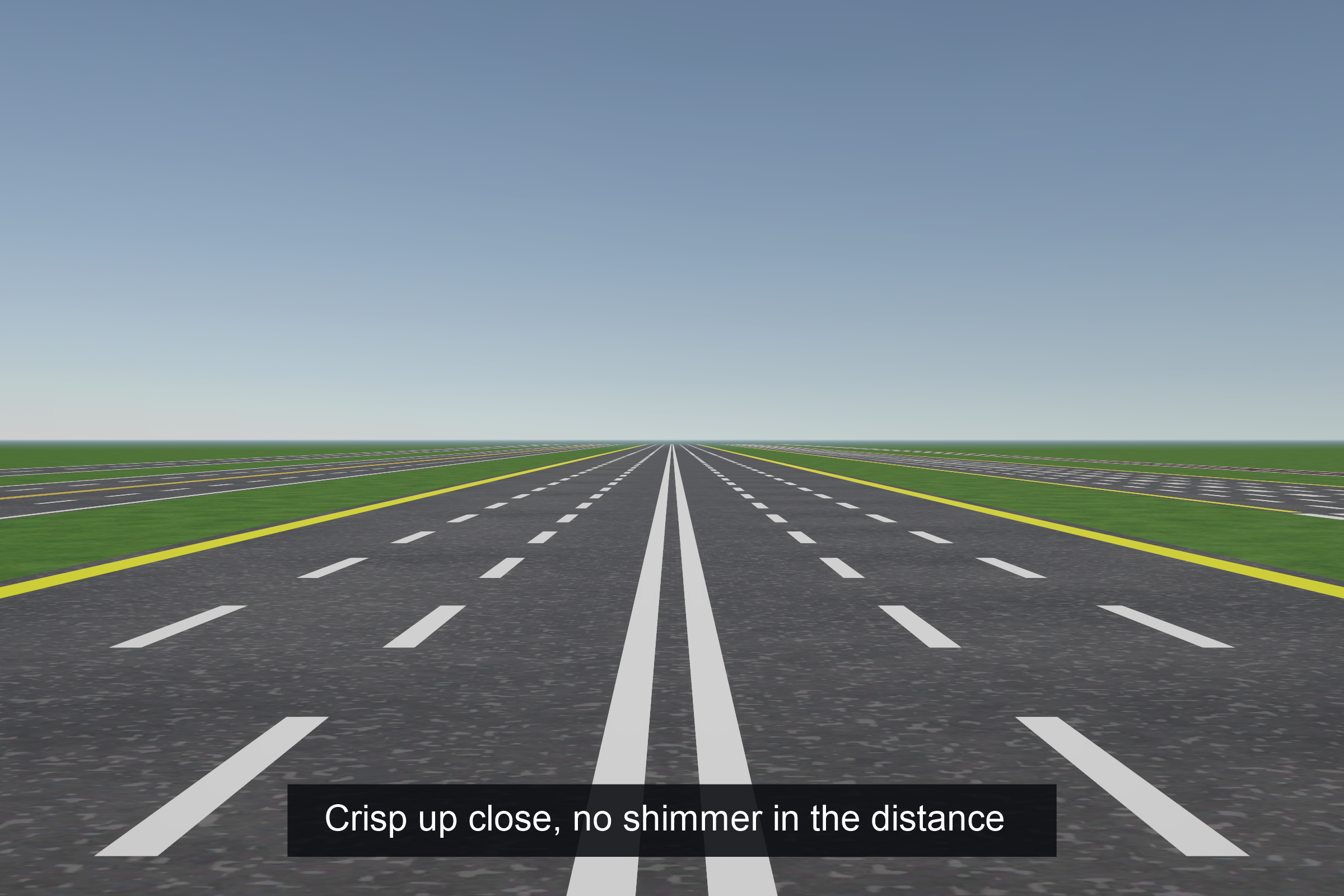
Each line is a distance test against the UV, softened over exactly one pixel using screen-space derivatives. Lines thinner than a pixel fade out instead of flickering, and dashes converge to an even grey in the distance instead of producing moiré. No MSAA or post-process anti-aliasing is needed for the markings.
Rendering
The shader reuses URP's own Lit passes (forward, GBuffer, shadow caster, depth, depth-normals and meta) and only replaces the surface data, so it behaves like URP Lit everywhere:
- Main and additional light shadows, soft shadows, light cookies and light layers.
- Lightmaps, light probes and adaptive probe volumes. The meta pass feeds the markings into baked GI.
- SSAO, decals and fog.
- Forward, Forward+ and Deferred rendering paths.
- SRP Batcher compatible and GPU instancing supported.
Side lines and the crossing are shader keywords. A material with them off compiles them out entirely; if you switch them from a script at runtime, make sure a material using that combination is in the build so the variant is kept.
Procedural race tracks
RoadTrack builds a road mesh along a spline (Unity Splines package), places props around it, and saves
the result as mesh assets or a prefab. Everything happens in the editor.
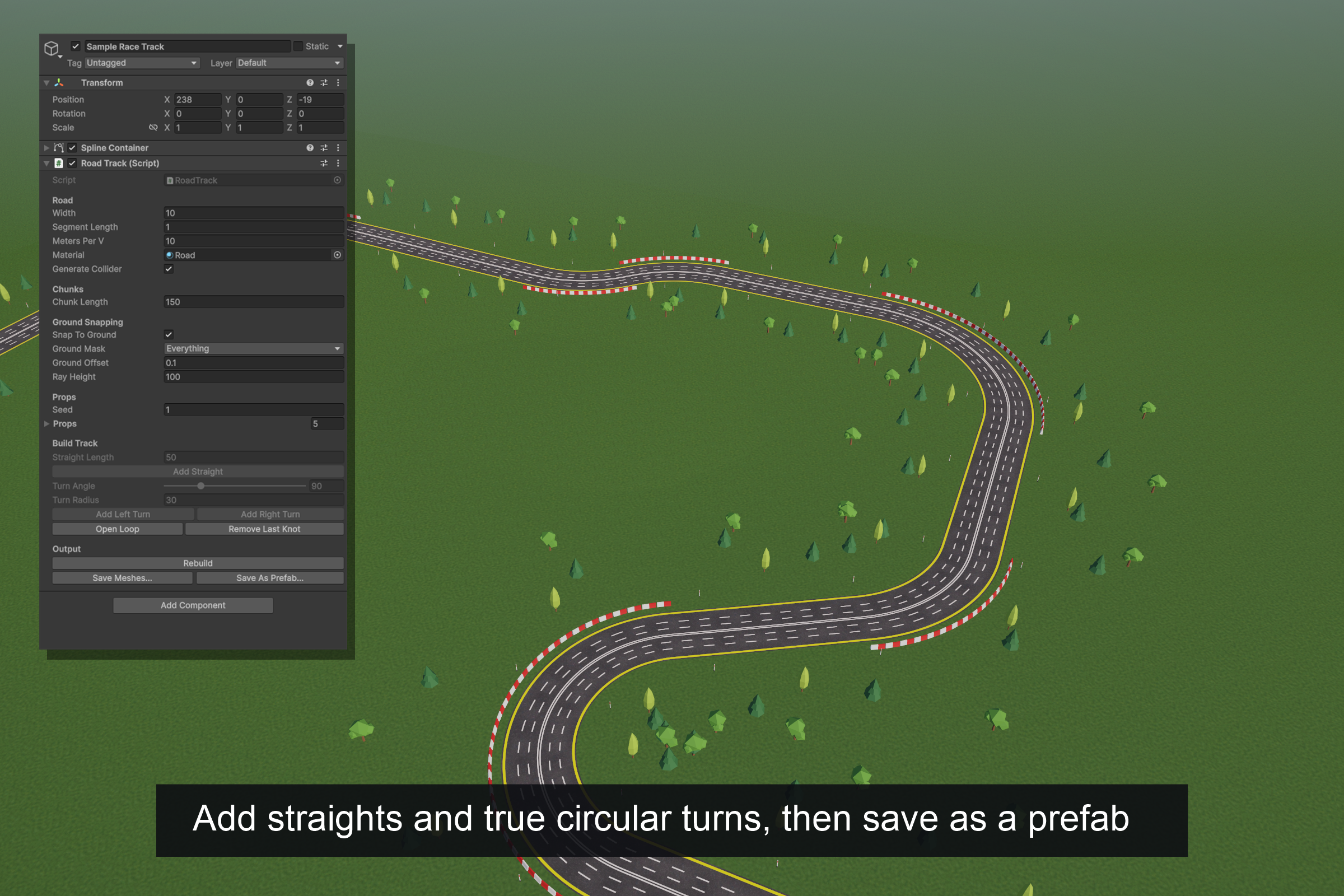
- Create creates an oval to start from.
- Shape Under Build Track: Add Straight, Add Left Turn / Add Right Turn (angle and radius; turns are true circular arcs), Close Loop and Remove Last Knot. Knots can also be edited freely with the Spline tools in the Scene view. Rotating a knot banks the road.
- Tune The road rebuilds whenever the spline or a setting changes.
- Save Save Meshes... writes the road meshes to one
.assetfile. Save As Prefab... saves the road and props as a prefab, with its meshes in<name>_Road.assetnext to it.
Settings
| Setting | Description |
|---|---|
| Width / Segment Length | Road width and distance between vertex rows, in metres. |
| Meters Per V | Road length per V unit. Keep it equal to Width for the same marking proportions as the prefabs. |
| Material | The road material. Defaults to Road.mat. |
| Generate Collider | Adds a MeshCollider to every chunk. |
| Chunk Length | The road is split into separate meshes of at most this length, so distant parts are culled. |
| Snap To Ground | Drops every road vertex and prop onto the colliders below (for example a Terrain), using Ground Mask, Ground Offset and Ray Height. |
| Seed | Makes prop placement repeatable. |
Props
Each prop rule places one prefab along the track:
| Field | Description |
|---|---|
| Prefab | The object to place. |
| Spacing / Start Offset | Distance between props and to the first one, in metres along the track. |
| Side | Both, Left, Right, Outside Of Turn or Inside Of Turn. |
| Edge Offset | Distance from the road edge, in metres. |
| Jitter | Random position offset, in metres. |
| Max Turn Radius | Only place where the turn is tighter than this radius, for example tyre walls in corners. 0 places everywhere. |
Saving and runtime
A saved prefab contains only meshes, renderers, colliders and props: no spline and no RoadTrack
component, so it costs nothing extra at runtime. Keep the original track object in an editor-only scene if you want
to edit it later.
Anything added by hand under the track's Generated object is replaced on the next rebuild. Put your
own objects next to it instead.
On a closed loop the dashes may not line up where the loop joins. The pedestrian crossing (at
V = Crossing Offset) makes a good start line to hide it.
What is in the package
Assets/HardArtcore/RoadShader/
├── Shader/        RoadShader.shader, RoadInput.hlsl
├── Scripts/
│   ├── Runtime/   RoadTrack: the track generator
│   └── Editor/    Material inspector, Road Track inspector, menu item
├── Materials/     Road (motorway), RoadCrossing (double centre line with crossing), prop materials
├── Prefabs/       Straight road pieces, with and without a crossing
│   └── Props/     Barrier, marker pole, oak, pine and poplar trees
├── Models/        Prop meshes
├── Textures/      Tileable asphalt base map and normal map, grass
├── Scenes/        DemoScene with the Sample Race Track on a hilly terrain
├── Tests/         EditMode tests for the track generator. Safe to delete.
└── Documentation.md
Troubleshooting
- Pink material
- The project is not on URP, or the URP version is older than 17.1.
- Markings are stretched or squashed
- The mesh's V does not grow with its length. Keep V proportional to the real length (for example 1 V per 10 m), or set Meters Per V on a track.
- Dashes have different lengths on different pieces
- Same cause: each piece must use the same metres per V.
- A marking switched on from script is missing in a build
- Its shader variant was stripped. Include a material that uses that keyword combination in the build.
- The track does not follow the terrain
- Enable Snap To Ground, check that Ground Mask includes the terrain's layer, and that Ray Height covers the height difference.
Release notes
1.0.0
- URP Lit road shader with procedural side, centre and mid lines, dashes and pedestrian crossing.
- Custom material inspector.
- Spline race track generator with chunking, ground snapping, prop rules and prefab export.
- Road prefabs, props, asphalt textures and a demo scene with a sample circuit.
Need help?
Questions, bug reports or feature requests: I usually reply within a day.
Last updated October 20, 2026.